Lists
Creating Lists
Users may create and save lists of features, such as gene IDs, transcript IDs, gene symbols, etc. The list tool searches the database for the list items and attempts to convert each identifier to the selected type. Click on the Lists tab from the menu to access the full list upload form. A short version of the form is also in the Quick List box on the home page.
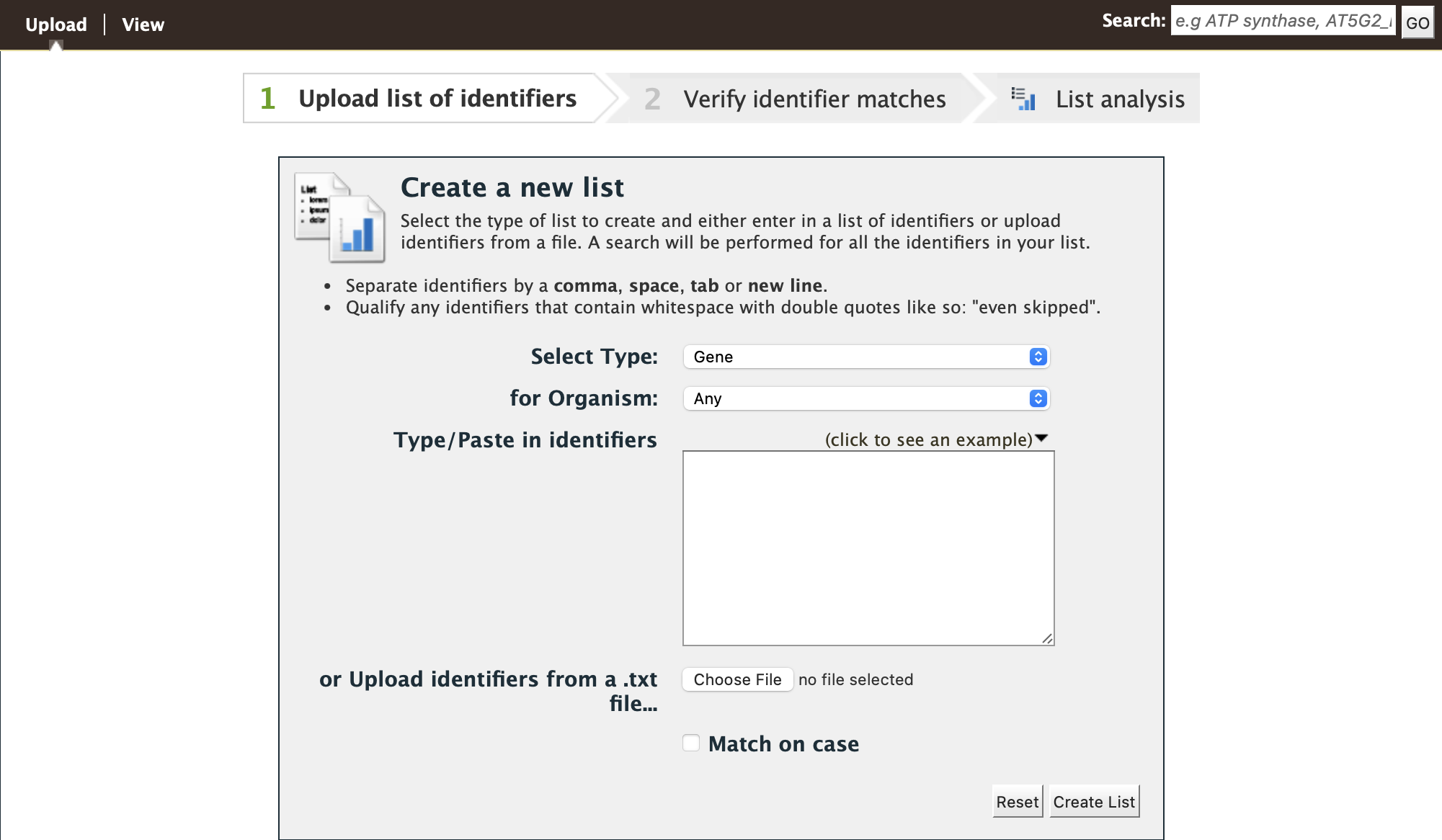
List upload form

Quick list from BovineMine home page
As an example, enter the following comma-separated identifiers into the Lists upload form under the Lists tab. Notice that they do not have to be in the same format. A Summary table is displayed with the results of searching for each of the five identifiers in the list.
105503010, KCNK1, STAT5A, BTG1, ENSBTAG00000006858
Leave the Select Type drop-down menu to Gene and the Organism drop-down to Any. Click on Create List. Note that you can also upload a list from a .txt file.
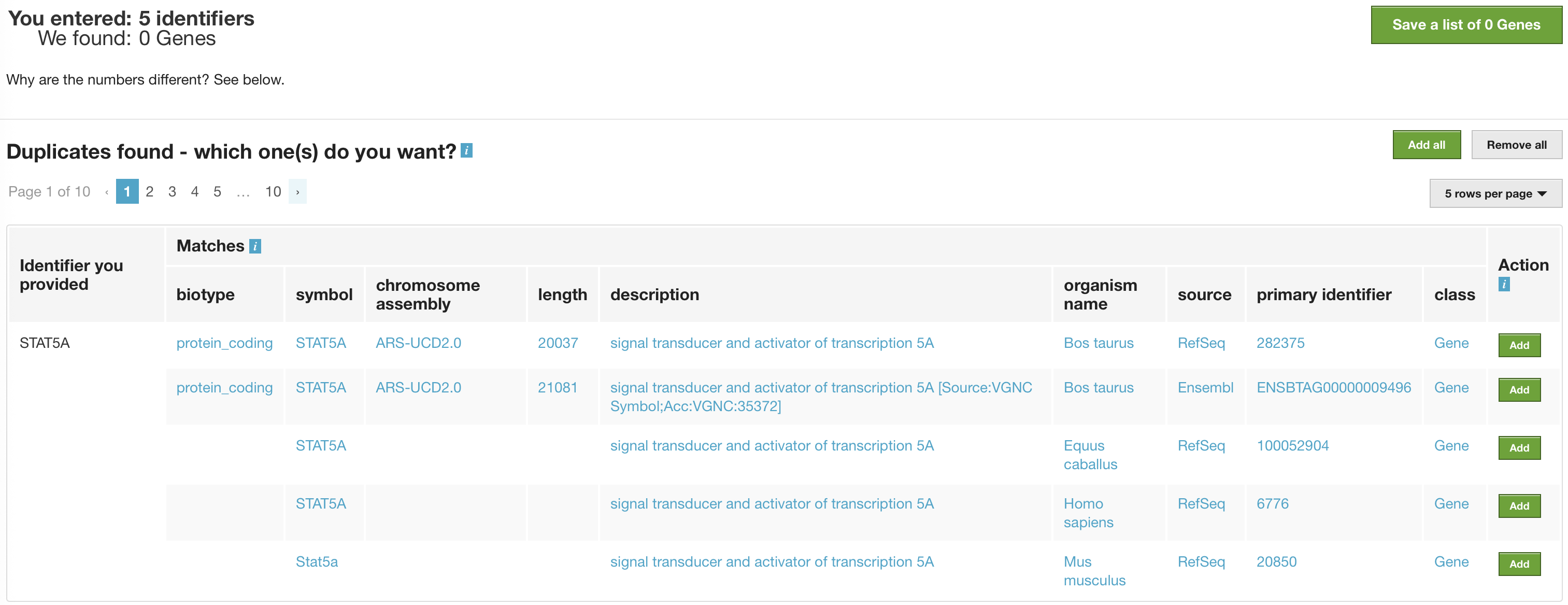
List Example: Search results for list of identifiers
The summary table provides information regarding those identifiers that had a direct hit without any duplicates. If there are any duplicates, users can decide to add the relevant entries individually by clicking on the Add button under the Action column or choosing the Add all tab. Here we will click Add all. Once the selections have been added, the list can be saved by clicking the Save a list of 46 Genes button on the top of the summary table. Name the list by entering text into the Choose a name for the list box at the top of the results page.
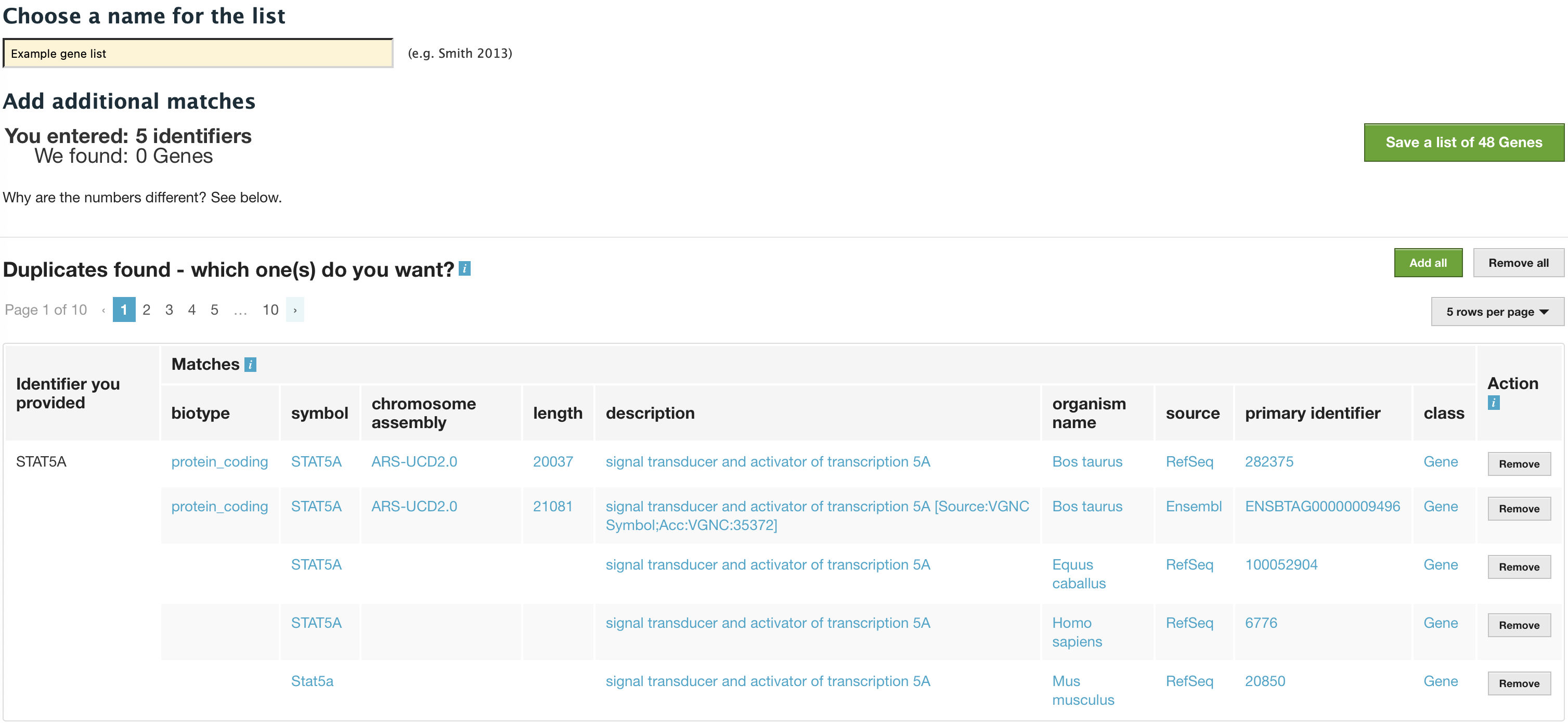
List Example: Saving list of identifiers
After the list is saved, users are presented with a List Analysis page. This page provides users with widgets to perform analyses on gene lists that they have created.
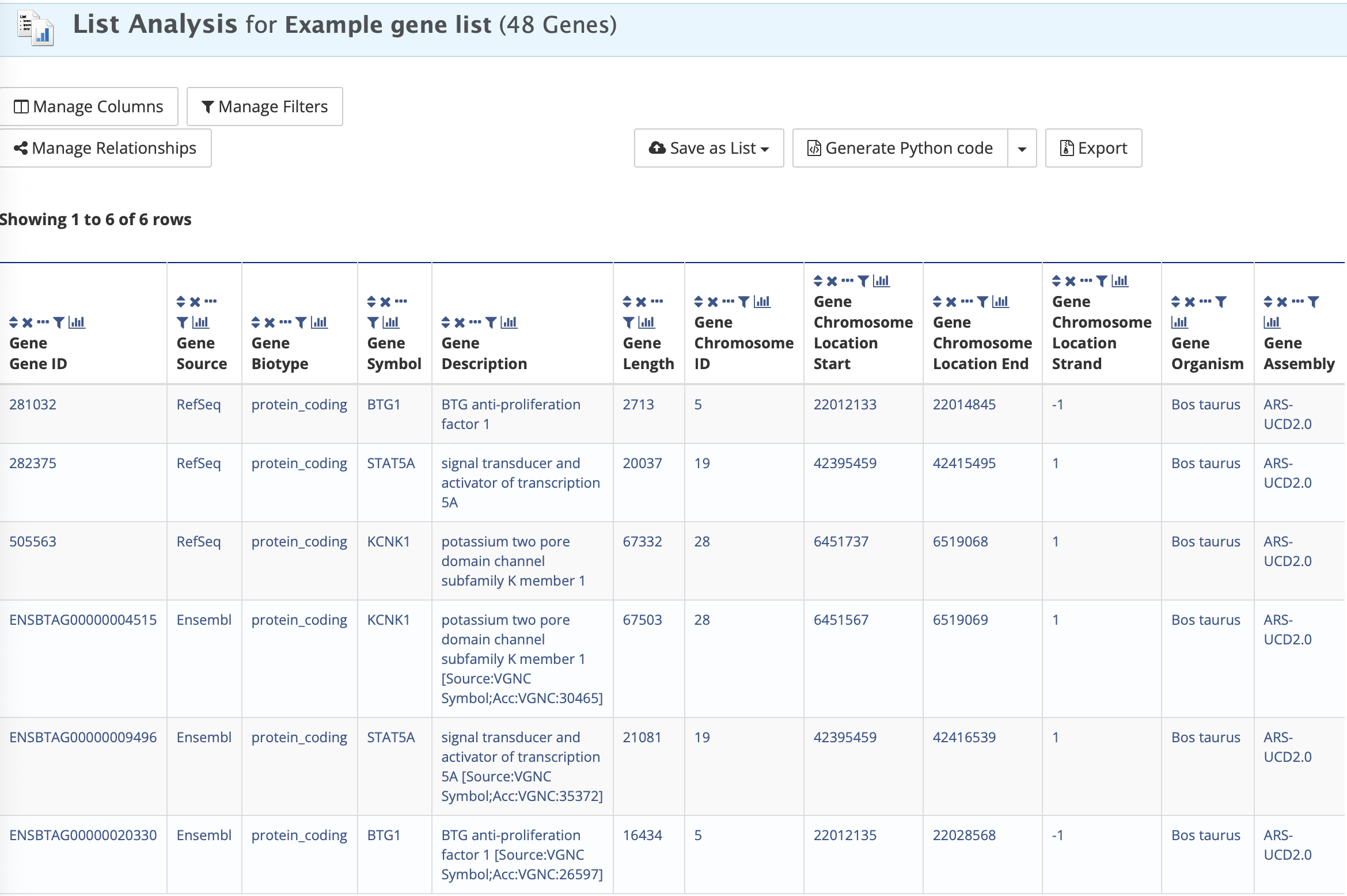
List Example: Analysis for gene list
The available widgets are Gene Ontology Enrichment, Publication Enrichment, and Pathway Enrichment. Read the Important Notes for Enrichment Widgets for special instructions to avoid false positives.
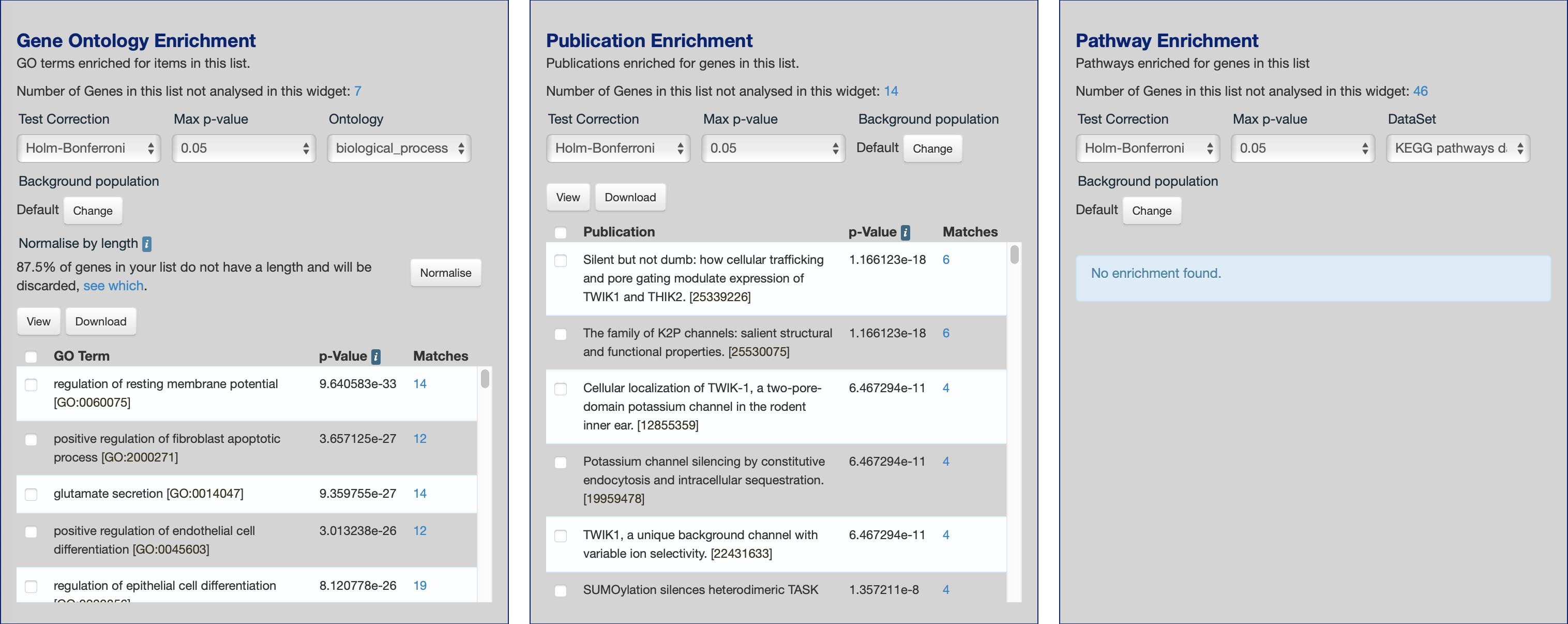
List Example: Displayed widgets for list analysis
Saving Lists
To see your saved lists, click the View tab on the Lists page. If not logged in, lists will be saved temporarily during your current session. However, you must be logged in to save your lists permanently. Further analyses of lists can be done with the Actions links at the top of the list. The links become active once lists are selected for analyses. Saved lists may also be accessed from the MyMine menu tab.